




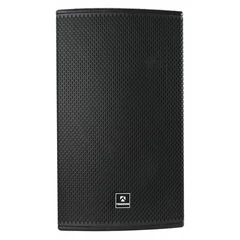





If you've ever walked into a retail store, school, or office building and heard crisp, consistent audio playing throughout the space, there's a good chance an IP ceiling speaker system is powering that sound. As a supplier of network audio solutions, I've spent countless hours working with installers, facility managers, and IT teams to resolve issues that pop up with these speakers. Unlike traditional analog ceiling speakers, IP models connect to your network, which means troubleshooting requires a mix of audio system basics, network know-how, and a familiarity with how these devices integrate with your setup. If your Vailink IP ceiling speakers are acting up-no sound, distorted audio, intermittent connectivity, or status lights not behaving as they should-follow this step-by-step guide to diagnose and fix common problems, and if you need replacement parts or a new unit, check out our range including the 8' Vailink Network Coaxial Ceiling Speaker for seamless upgrades.

Start with the Basics: Rule Out Simple Issues
Before diving into network diagnostics, it's easy to miss the small, obvious fixes that cause most speaker problems. First, confirm the source of your audio is working: play a test clip from your network audio server (like a custom announcement, playlist, or background music stream) on a different speaker connected to the same source. If that works, the issue is isolated to your IP ceiling speaker; if not, the problem is likely your audio source or server.
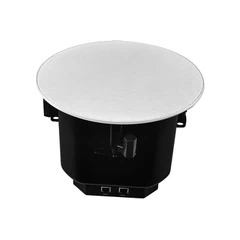
Next, check the speaker's physical status. IP speakers have small LED indicators that signal their connectivity and power status. For our IP models, a solid blue light means they're connected to the network and powered on; a blinking blue light indicates they're attempting to connect; a red light usually points to a power or configuration error. If there's no light at all, verify the power source. Most IP ceiling speakers draw power over Ethernet (PoE), so check your network switch's PoE ports: make sure the switch supports PoE (many older switches don't) and that the Ethernet cable is securely plugged into both the speaker and the switch. If the port is disabled or doesn't supply PoE, moving the cable to a known working PoE port on your switch often restores power. If you need a replacement PoE-compatible speaker, the 6' Vailink Network Coaxial Ceiling Speaker is designed for consistent PoE performance in standard ceiling installations.


Diagnose Connectivity Issues: Network Layer Troubleshooting
Once you've confirmed the speaker has power, the next most common issue is network connectivity problems. IP ceiling speakers rely on a local area network (LAN) to send audio data from your server to the speaker, so even small network glitches can disrupt service.
Start by verifying the speaker is assigned a valid IP address. Many IP speaker systems use Dynamic Host Configuration Protocol (DHCP) to automatically assign IP addresses, but sometimes a DHCP server outage or misconfiguration can leave the speaker with an invalid address. To check this, access your network router or switch's admin dashboard and look for connected devices. If the speaker doesn't appear in the list, or has an IP address outside your network's range (e.g., 169.254.x.x, which is a self-assigned address when DHCP fails), you'll need to manually assign a static IP address to the speaker. Consult your speaker's user manual for the steps to access its web admin interface-for our models, you can enter the speaker's MAC address (found on a sticker on the back of the unit) into your router's DHCP reservation list to ensure it gets the same IP every time, which prevents connectivity drops.

If the speaker has a valid IP address but still isn't receiving audio, test network connectivity between the speaker and your audio server. Use the "ping" command from a laptop or device on the same network as the speaker to send test data to the speaker's IP address. If pings time out, there could be a firewall blocking the connection, a bad Ethernet cable, or a switch port that's set to a different VLAN. VLANs are common in office and enterprise networks, and if your audio system is on a separate VLAN from the speaker, they won't be able to communicate. Work with your IT team to confirm both devices are on the same VLAN, or that the router is allowing traffic between the audio server and speaker VLAN. For larger installations, our 12' Vailink Network Powered Full-range Speaker is built to handle reliable VLAN traffic for high-coverage areas like auditoriums or warehouses.

Audio Quality Issues: Distortion, Muffled Sound, or No Volume
If the speaker is connected to the network and powered on but has poor audio quality, the problem is usually related to the audio stream itself or a misconfiguration in the speaker's settings.
First, check the audio bitrate of the source. IP ceiling speakers support different audio codecs, like MP3, AAC, or PCM, and using a bitrate that's too high for your network can cause buffering that leads to distorted or choppy sound. For example, a 320kbps MP3 stream might work in a small office with a strong network, but in a crowded retail space with multiple devices using the network, dropping to 128kbps can reduce buffering and improve consistency. Test by playing a lower-bitrate clip on the same speaker to see if the issue resolves.
Next, verify the speaker's volume and equalizer settings. Many IP audio systems let you adjust individual speaker volumes remotely through the server dashboard. If all speakers are playing at the right volume but one is quiet, check the speaker's physical settings: some models have a small trim knob on the back for manual volume adjustment, or the remote setting might have been accidentally lowered. Muffled sound often points to a loose speaker driver or a problem with the installation-ceiling speakers can sometimes shift in their mounting bracket, pressing against the ceiling tile or insulation, which blocks sound. Remove the speaker grille to check that the driver is properly seated and not touching any obstructions. If your current speaker is showing signs of driver wear, our 4.5' Vailink Network Powered Column Speaker offers a compact design ideal for tight ceiling spaces.
Intermittent audio is another frustrating issue that often stems from a bad Ethernet cable. Even if a cable works for data, it might not reliably carry PoE or audio data for long periods. Use a cable tester to check for breaks or interference-cables that run near power lines or other electrical equipment can pick up noise that causes intermittent drops. Replace the cable with a shielded Ethernet (STP) cable if you're running it near power sources, and make sure the cable is the correct length for the run (Cat 6 is recommended for IP audio to handle data and PoE efficiently).

Advanced Troubleshooting: Firmware and System Configuration
If you've tried all the basic steps and the speaker still isn't working, the problem might be with the speaker's firmware or the main audio system configuration.
If the firmware is up to date, check the main audio system's configuration. If you're using a network audio controller (like a Dante or Q-SYS system), confirm the speaker is added to the controller's device list and assigned to the correct audio zone. Sometimes a speaker can be accidentally moved to a different zone, which means it won't receive audio streams for its original area. For example, a speaker in a break room might be assigned to a conference room zone, resulting in no sound. You can reassign zones through the controller's dashboard, or reset the speaker to factory defaults if you're unsure of the configuration. To reset, hold the reset button on the back of the speaker for 10 seconds until the LED flashes rapidly, then reconfigure it from scratch via your network. For high-volume areas like gyms or large open offices, our 8' Vailink Network Powered Full-range Speaker is designed for easy zone configuration and reliable performance even in demanding environments.
When to Reach Out for Help
Troubleshooting IP ceiling speakers can feel overwhelming, especially if you're not familiar with network audio systems. If you've tried all the steps above and the issue persists, it might be a hardware problem-like a damaged PoE port on the switch, a faulty speaker driver, or a broken Ethernet connector. As a Vailink supplier, our team has years of experience diagnosing these issues, and we can help you test your hardware, replace faulty components, or customize your system to fit your space. Whether you need a replacement speaker, a PoE switch upgrade, or a full system tune-up, we're here to support your setup. If you're looking to upgrade your existing IP ceiling speakers or expand your system, feel free to reach out to our team to discuss your specific needs and find the right solution for your space.
References
- Vailink IP Ceiling Speaker Installation Guide. Network Audio Distribution Solutions, 2024.
- PoE Switch Compatibility for Network Audio Devices. Enterprise Networking Journal, 2023.
- Troubleshooting IP Audio Connectivity. Commercial Audio Systems Association, 2022.
- Firmware Best Practices for IP Networked Speakers. Audio Engineering Society, 2023.


